
How to Remove Vocals from a Song: 3 Methods
Three ways to remove vocals from a song: an online vocal remover, phase cancellation in Audacity, or an official instrumental.
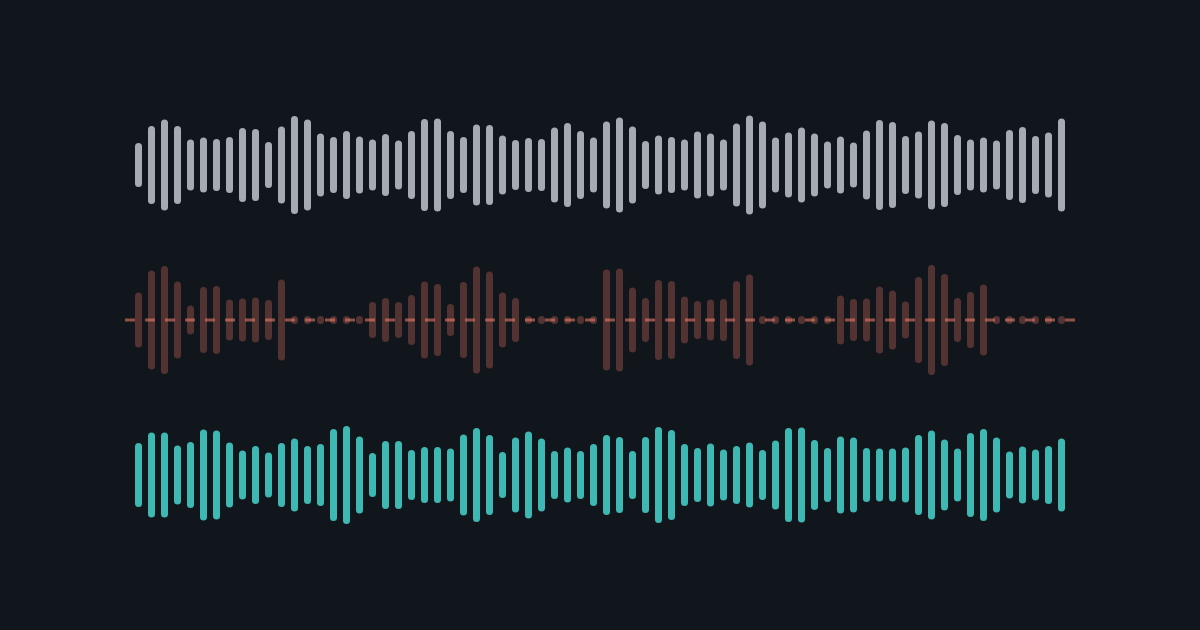
The fastest way to remove vocals from a song is to upload it to an AI vocal remover and download the instrumental. Our free online vocal remover does this in about a minute: you get the vocals and the instrumental as separate WAV files, and your first song is free with no sign-up.
If you would rather not upload, you can try phase cancellation in Audacity or look for an official instrumental. No method guarantees a perfectly clean backing track from every mix. If you want the singer rather than the music, see how to isolate vocals from a song.
Method 1: Remove vocals with an online tool
An online separator needs no install and gives you both tracks from one upload. Keep the instrumental for karaoke, cover practice, or hearing the arrangement without the lead voice.
For a backing track, try the instrumental maker and listen to the instrumental output.
- Upload your song. MP3, WAV, FLAC, M4A, AAC, OGG or Opus, or an MP4, M4V or MOV video, up to 20 minutes and 200 MB. To remove the voice from a video, upload the video itself; you get its vocals and instrumental as WAV files. Start with the cleanest copy you have; converting a low-quality MP3 to WAV does not add detail back.
- Let it separate. Your first song up to 10 minutes is free without signing up, and processing counts as that free try even if you only listen. Signing up with Google adds 10 free minutes, and minute packs cover anything more.
- Compare and download. Play the instrumental against the original, checking the chorus and quiet parts, then download it as WAV. The vocal WAV is there too. Files stay available for 24 hours after upload.
Remove vocals from your own song
Get the instrumental and the vocals as two WAV files. First song free, no sign-up.
Try the vocal removerMethod 2: Try phase cancellation in Audacity
Phase cancellation is an experiment for a particular kind of stereo recording. It subtracts one channel from the other, reducing sounds that are identical in both channels. A centered lead vocal may be reduced, but the process does not identify the singer as a separate musical source.
Audacity can do this without any plugin. Work on a copy of your recording:
- Import the stereo song into Audacity.
- Open the track's dropdown menu and choose Split Stereo to Mono. You now have two mono tracks, one for each channel.
- Select one of the two tracks, but not the other.
- Choose Effect > Special > Invert.
- Play both tracks together. Vocals that are identical in both channels should cancel, leaving more of the backing music.
- If the result is useful, export it as a WAV file.
The Audacity manual's Invert page describes this as a manual way to remove vocals, and notes that it only works when both channels carry the same vocal but different background instruments. Other sounds shared by the channels can disappear too, including instruments you wanted to keep. Stereo vocal effects and reverb may remain. A recording with identical mono audio in both channels can lose nearly everything instead of producing a useful backing track.
Older tutorials may point to a built-in effect called Vocal Reduction and Isolation. The official Audacity manual says it has not shipped with Audacity since version 3.5.0, though it is still available as a separate Nyquist plugin. If the voice stays or the music gets too thin, this method does not suit that recording.
Method 3: Find an official instrumental or karaoke version
Before processing anything, check whether a backing track already exists. Some singles, deluxe editions, and soundtrack albums include instrumental versions, and karaoke versions of popular songs are widely sold and streamed. An official instrumental is mixed from the original session tracks, so it has no separation artifacts at all.
Where to look:
- Search your music streaming service or download store for the song title plus "instrumental" or "karaoke".
- Check the artist's singles and deluxe releases, which sometimes add an instrumental version.
- Browse karaoke catalogs and karaoke video channels for popular songs.
This only works when someone has released a version without vocals. Older, independent, and less popular songs often have none. Karaoke versions are usually re-recorded by session musicians, so the arrangement and sound may differ from the original. Buying or streaming a track also does not give you the right to publish or sell something made with it.
Compare the three methods
| Method | Setup and control | Main limitation |
|---|---|---|
| Online separator | Browser upload, listen, and download | Upload limits and possible separation artifacts |
| Phase cancellation in Audacity | Free desktop app; manual channel splitting and inversion | Only reduces sound shared by both channels; can remove wanted instruments |
| Official instrumental or karaoke version | Search, then buy or stream; no processing | Exists only for some songs; karaoke versions may be re-recordings |
For most songs, the online method is the quickest way to a usable backing track. Try phase cancellation in Audacity when you want a free desktop experiment and understand its channel requirements. If you need a perfectly clean result for a well-known song, check whether an official instrumental exists. This comparison describes workflows and limitations, not a measured quality ranking.
How to get a more useful backing track
Use the highest quality source available and avoid recordings with clipping or added room noise. Converting formats is not a repair for those problems. Listen at a sensible volume and compare several parts of the song, since a convincing verse does not guarantee a convincing chorus.
Check what you actually need to remove. A backing track with a little vocal reverb may work for rehearsal but be distracting in a sparse arrangement. Backing vocals can be part of the music you want to keep, yet a two-track separator does not offer separate lead and harmony controls.
Save the original and your chosen output with clear names. If a project requires a cleaner result than separation provides, look for an official instrumental as described in Method 3. Processing a finished mix does not recreate a recording session's original tracks.
Frequently asked questions
Can I remove vocals for free?
Yes. Our tool offers one song up to 10 minutes without registration, and a first Google registration gives a one-time 10 minutes of credit. Processing counts even if you only listen. Both output tracks can be downloaded as WAV, with no paid format upgrade required.
Why can I still hear some singing?
Reverb, layered voices, and sounds that overlap instruments can make separation imperfect. Stereo cancellation also leaves sounds that differ between the two channels. Listen to the output before deciding that it is suitable; no method here promises to remove every trace of voice.
Is removing vocals the same as isolating them?
The outputs are different. Removing vocals means keeping the instrumental; isolating vocals means keeping the voice. Our tool provides both, and the vocal isolation guide explains how to use the vocal output.
Can I share the backing track or use it commercially?
Separating a recording does not give you rights to someone else's recording or composition. Before sharing, releasing, sampling, or using the result commercially, make sure you have the necessary permission for your intended use. This applies to instrumental tracks as well as isolated vocals.
Ready to try a recording? Open the vocal remover and compare the instrumental with your original song.